When you upload a scan, AutoCropper looks for every separate photo on it and draws a crop box around each one. How it looks is the detection method. There are six to choose from, and one of them, V7 - Precision Detection, is the right choice for almost every scan: it is the most accurate, and it is what new visitors get by default. This page explains what each method does, when another one is worth trying, and the two related options that decide whether your photos come out upright and level.
Whichever method you use, every box it draws is a suggestion. You can move, resize, rotate, delete or draw crops yourself before you export (see adjusting crops).
Where to change it#
The detection method is set on the upload page, before you upload, under Advanced options.
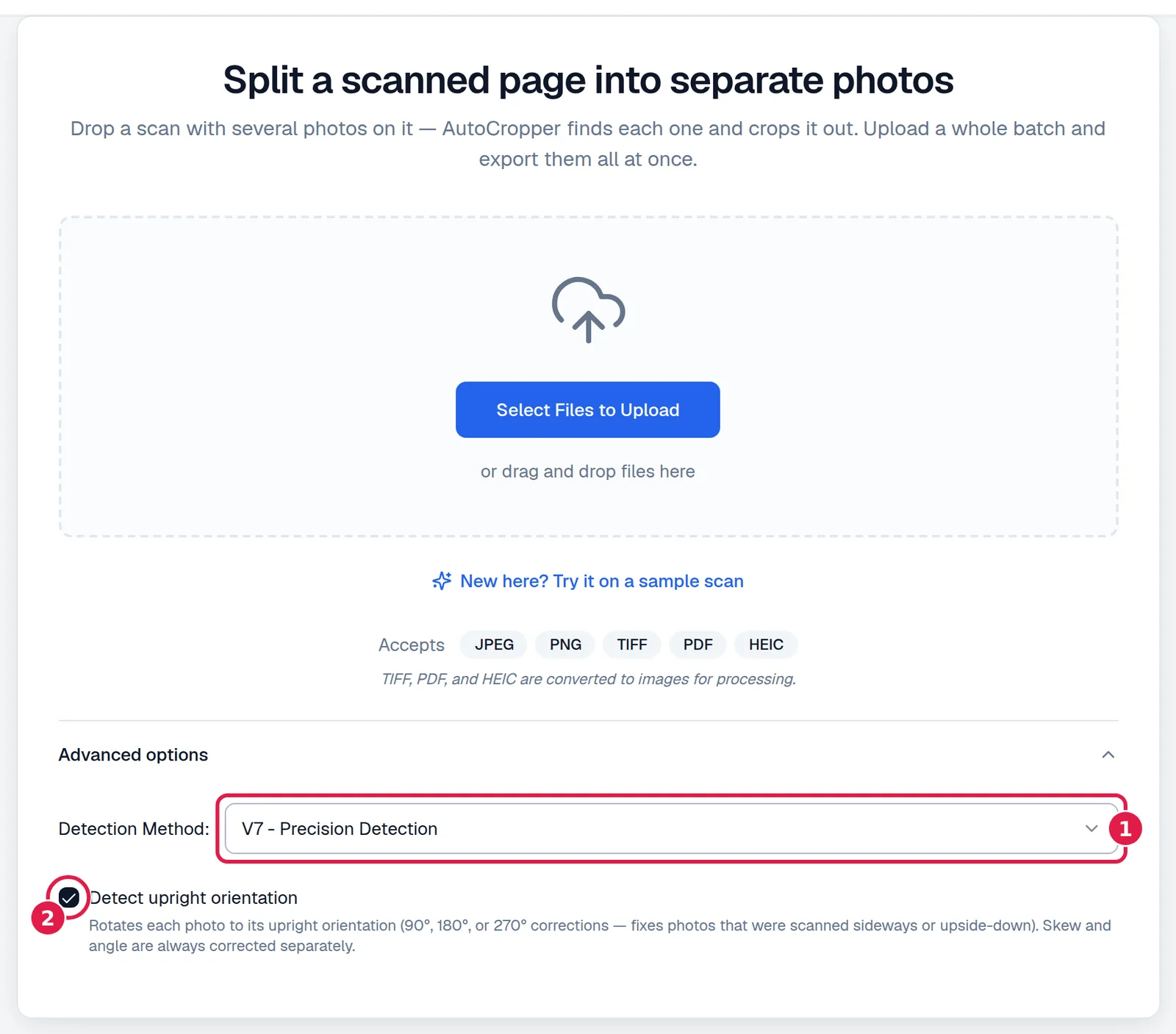
- Detection Method. The method used for the next upload. Scans already on screen keep the crops they were given; to detect them again with another method, upload them again.
- Detect upright orientation. Turns photos that were scanned sideways or upside down the right way up. On by default. See below.
Your choice is saved in your browser, not in your account, so it stays the same for every upload on this computer until you change it.
Which method should I use?#
Use V7. It handles everything the older methods were built for, and more: busy scrapbook pages, coloured and patterned backgrounds, photos packed tightly together, photos at an angle, and shapes that are not standard print sizes. It also trims each crop close to the photo's real edge.
Try another method only when V7 gets a particular kind of scan wrong:
| Your scan | Try |
|---|---|
| Anything, the first time | V7 |
| One large photo that fills almost the whole scan | V4 |
| A cut-out PNG with a transparent background | V3 |
| Several prints on a plain light or dark scanner bed, where V7 misses one | V5, then V1 |
| A magazine or scrapbook page with strong edges, where V7 misses one | V2 |
If no method finds a photo, draw its crop by hand: drag on the empty part of the scan, or use the 4-Point tool to click its four corners.
The methods#
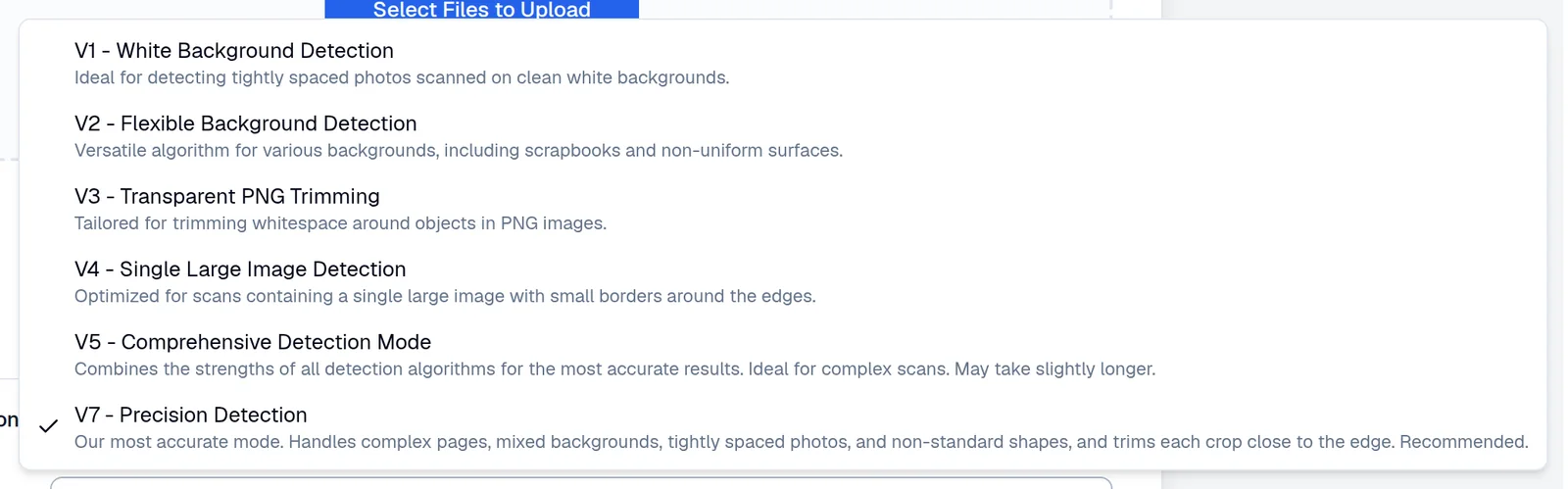
V7 - Precision Detection (recommended)#
The most accurate method, and the default for anyone using AutoCropper for the first time. It runs two detectors on the same scan: one trained on real scanned pages, and the classic shape-finding method from V5. It keeps the photos the trained detector finds, adds a photo the classic method found only when it clearly looks like one, then tightens each box onto the photo's actual edge. It copes with busy pages, mixed backgrounds, tilted and tightly spaced photos, and items that are not ordinary rectangles. If V7 cannot run for any reason, the scan is detected with V5 instead, without an error.
V5 - Comprehensive Detection Mode#
The previous default, and still the method for anyone who used AutoCropper before V7 arrived and never changed it. It runs four classic methods on the scan and merges what they find, which makes it a little slower. It works well for ordinary prints on a scanner bed. It deliberately ignores boxes that are not close to a standard print shape (4x6, 3x5, 5x7, 8x10, square, 2:3 or a trading card), very small or very large boxes, and photos tilted more than 45 degrees, so panoramas, strips and odd shapes can be missed.
V4 - Single Large Image Detection#
For a scan that holds one photo filling most of the scanner bed, with a thin border around it. It finds at most one crop, covering most of the scan, or none at all.
V3 - Transparent PNG Trimming#
For PNG files with a transparent background, such as cut-out photos or stickers. It draws one box around everything that is not transparent, which trims the empty margin. It always returns exactly one box, never rotated, so it is not meant for scans with several photos, and on a scan with a white background it returns roughly the whole image.
V2 - Flexible Background Detection#
Looks for strong edges, so it can find photos on coloured or patterned backgrounds such as scrapbook pages and magazines. On a busy page it can find extra boxes, which you can delete.
V1 - White Background Detection#
The original method. It separates photos from the background by brightness, and works best for well-spaced prints on a clean, plain bed, light or dark.
What happened to V6?#
V6 was a beta of the trained detector that V7 now uses. It is no longer offered. If you had it selected, it stays selected and still works, and like V7 it falls back to V5 when it cannot run. Choosing V7 gets you the same detector with better results.
Photos the right way up#
Detect upright orientation turns each detected photo a quarter turn, a half turn or three quarters when it was scanned sideways or upside down. It is on by default and works with every detection method. AutoCropper only turns a photo when it is confident; otherwise it leaves it as it was, and you can turn any crop yourself with the turn buttons in the right sidebar or the editor. Tilt, a photo a few degrees off level, is corrected separately and always.
You can switch it off on the upload page under Advanced options, or in Settings, on the Detection tab.
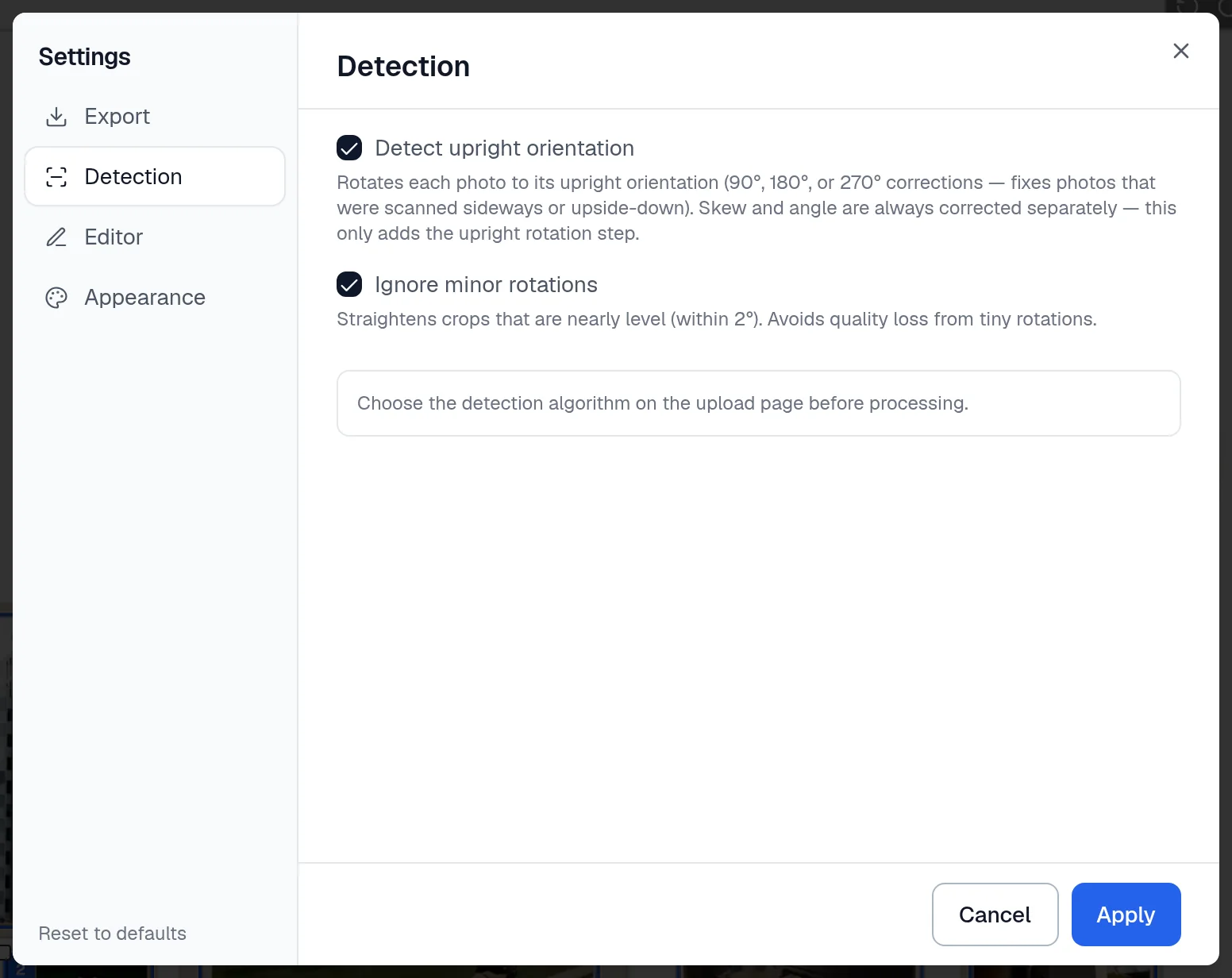
Ignore minor rotations, on the same tab, sets a crop's tilt to zero when it is within 2 degrees of level. A scanned photo that is a degree off usually looks better left level than rotated, and rotating by a fraction of a degree softens the image slightly. It is on for new visitors.
The V7 suggestion#
If you use any method other than V7, the upload page may show a card suggesting it.

Switch to V7 changes your method for the next upload, with an Undo in the confirmation. No thanks hides the card for good. The card appears at most three times, at least two weeks apart, and stays away for a month after you choose a method by hand.
Questions#
Does the detection method change the price or the free plan's limits?#
No. Every method is available on every plan, and a scan counts the same whichever method detects it. See pricing for the plans.
Why did AutoCropper miss a photo, or find one that is not there?#
Usually because the photo blends into the background or touches another photo. Delete an extra box, draw a missing one by dragging on the scan, or try the method suggested in the table above for that kind of scan. If V7 gets a scan badly wrong, the Submit Feedback button in the crop page's toolbar reaches the developer, and examples of hard scans are what improve it.
Can I change the method for scans I already uploaded?#
Not in place. The method applies when a scan is uploaded. Change it under Advanced options and upload the scans again.
Feedback and custom requests#
If none of the methods works for the kind of scan you have, send an example through Submit Feedback in the crop page's toolbar, or through the About page. Unusual layouts are exactly what the detectors are trained on next.