When your crops look right, the Export button at the bottom of the right sidebar turns every crop in the batch into its own image file and hands them to you in one zip, or, when the export holds a single photo, as that photo on its own. The number on the button is how many photos the export will hold. Before anything is written, the Export dialog lets you choose the format, pad each photo to a fixed shape, name the files and stamp a date into them, with a live preview of the result. Everything runs in your browser: your photos are never uploaded to make the export.
The Export dialog#
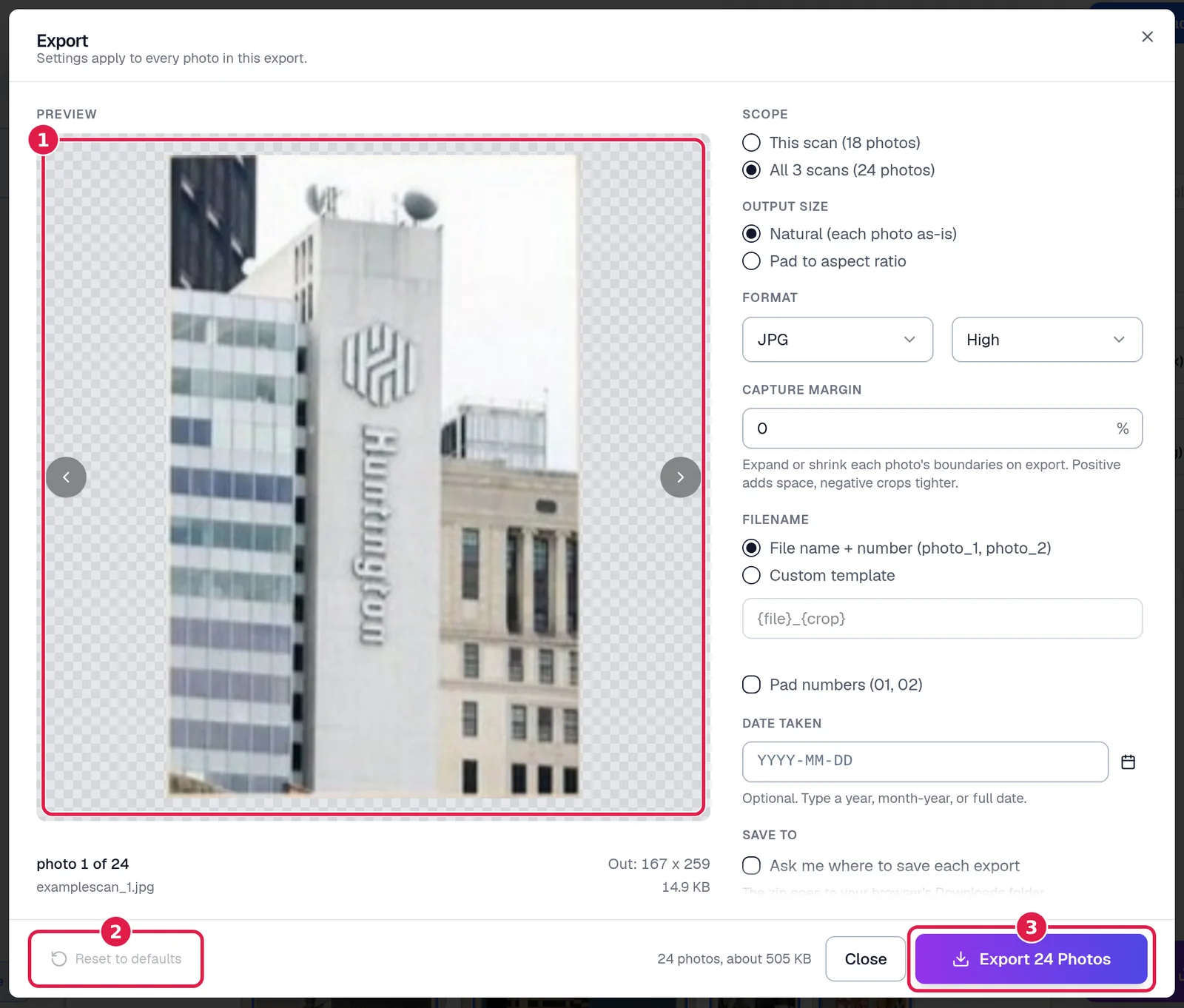
- Preview. The photo exactly as it will be written, with any padding, margin and background applied. The arrows, or the Left and Right keys, step through every photo in the export, scan by scan, and wrap around at the end. Under it: which photo this is out of how many, the file name it will get inside the zip, its output size in pixels and its encoded file size.
- Reset to defaults. Puts every option back to the stock settings and saves them as your defaults at once. It is greyed out when nothing differs.
- Export. Starts the export. Beside it, the footer estimates the whole export's size, for example 24 photos, about 505 KB.
The heading reads Settings apply to every photo in this export: the options below apply to the whole batch, while a crop's own name, date and border are set in the Advanced Crop Editor.
Scope: this scan or every scan#
This scan exports only the crops on the scan you are looking at; All scans exports every crop in the batch. Each choice shows its count, for example This scan (18 photos) and All 3 scans (24 photos). The choice appears only when more than one scan has crops, and the dialog always opens on all scans.
Output size and padding#
Natural (each photo as-is) writes each photo at its own size and shape. Pad to aspect ratio places each photo, centred and untouched, on a larger canvas of the shape you pick, so every file in the batch comes out the same shape. Padding never stretches or crops a photo.
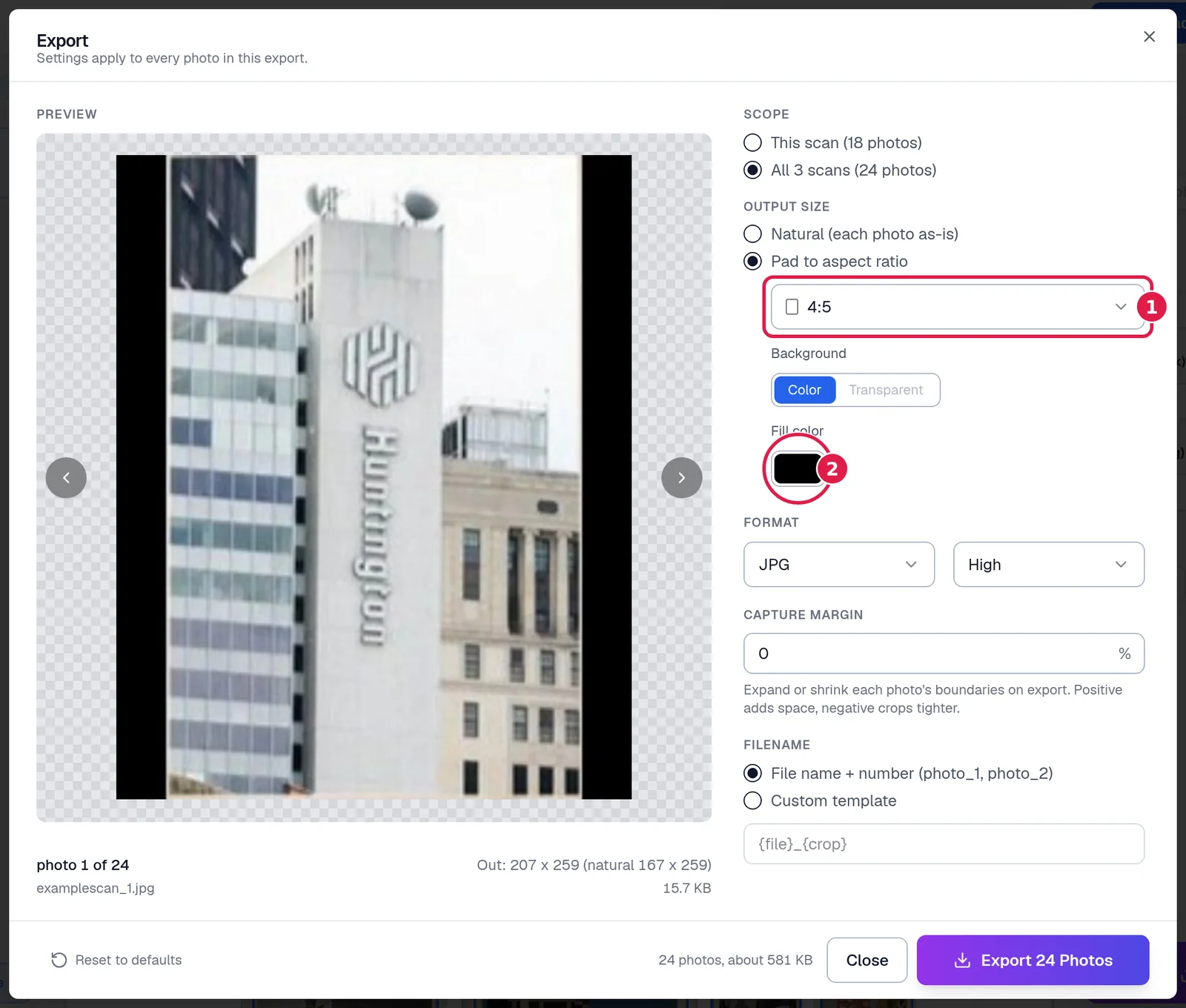
- Aspect ratio. The built-in shapes are 3:4, 5:7 (trading card), 4:5 and 1:1. Choosing Pad starts on 3:4. Add custom opens a small dialog where you type any ratio as W:H, W/H or WxH with whole numbers, such as 16:9 or 5x7, with an optional label; Save & apply keeps it under Saved for next time. You can save up to 20, each with an X to delete it, and they are shared with the Aspect Ratio picker in the right sidebar. A ratio wider or taller than 5 to 1 gets a warning that the photos will be mostly padding.
- Fill color. The colour of the padding. It starts black; click the swatch to pick another.
Background chooses between Color, the fill above, and Transparent, which leaves the padding empty. Transparent needs PNG, and is greyed out with a note to switch to PNG while the format is JPG. In the preview a transparent area shows as a grey checkerboard with a dashed outline marking the file's edge; the checkerboard is never written to the file.
Very large padded photos are capped at 16,000 pixels on a side and 64 megapixels. Past that the whole image is scaled down evenly to fit, and the preview says it was capped.
Format and quality#
| Format | Writes | Notes |
|---|---|---|
| JPG | .jpg | The default. Smallest files. Carries EXIF metadata. |
| JPEG | .jpeg | The same encoding as JPG with the other extension, for workflows that expect it. |
| PNG | .png | Lossless, keeps transparency, larger files, no EXIF. |
For JPG and JPEG, Quality is Max, High (the default), Medium or Standard. High is visually indistinguishable from the scan for most photos; Max is for print work. The Quality choice disappears for PNG, which is always lossless.
JPEG has no transparency. If any uploaded image in the export has a transparent background and the format is not PNG, the dialog says so, explains that those areas will export as white, and offers a Use PNG button. JPEG exports are always flattened onto white, which also whitens the corners of a rotated crop and any margin that runs past the scan's edge.
Capture margin#
Grows or shrinks every crop's boundary on export, as a percentage of the crop, from minus 50 to plus 50 in half steps, without moving the crops on the canvas. A positive margin keeps a little of the page around each photo, which is useful when detection runs tight; plus 2 or 3 percent is usually enough. A negative margin trims inside the edges, for example to lose a white print border.
File names#
- File name + number names each photo after its scan and its position on that scan: the fifth photo on vacation.jpg becomes vacation_5.jpg. The number is the crop's position in reading order, the number you see on the canvas, so it updates when you move or delete crops.
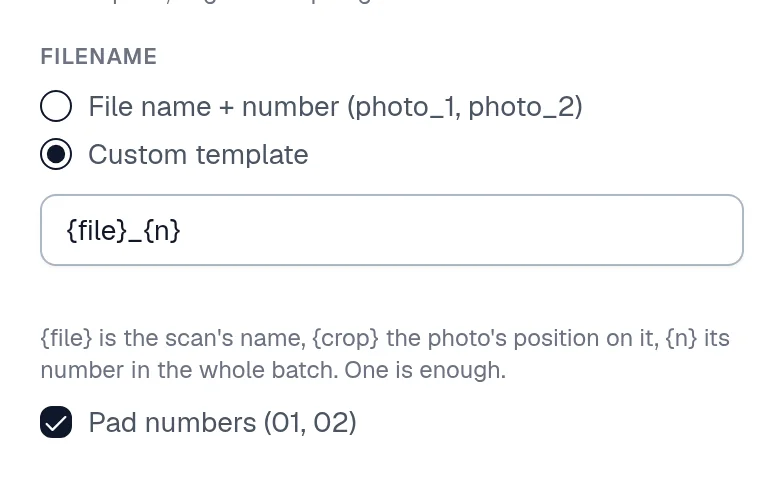
- Custom template builds names from three placeholders: {file}, the scan's name; {crop}, the photo's position on its scan; and {n}, the photo's number across the whole batch. The template needs at least one of them and no spaces. vacation_{crop} and album_{n} are both valid, and {file} alone names a scan that holds one photo after the scan itself.
- Pad numbers (01, 02) pads the numbers with zeros to the same width, so files sort in order everywhere: photo_01 to photo_24 rather than photo_1, photo_10, photo_2.
Your own names. Type a name for a photo in the Name field of the right sidebar's Crop options panel, or in the Advanced Crop Editor, and it wins over both modes. A typed name follows its photo if the crops are reordered, is never numbered or padded, and is cleaned of characters a file name cannot hold. A line under the template field says how many photos have their own names. Two photos that would get the same name are told apart as name (2). The Settings dialog's Export tab sets the same naming options.
Date taken#
Scanned prints carry the scan's date, not the date the photo was taken. Date taken writes one date into every exported JPEG's EXIF metadata, so photo apps sort the batch by when it was shot. Type a full date, a month and year, or just a year: 2024-05-03, 05/03/2024, May 3, 2024, May 2024 and 1987 all work, and a bare year becomes the first of January. A date set on a crop in the editor wins over this one, and the help line says how many photos keep their own date. With PNG the date is not written, because PNG files carry no EXIF here, and the dialog says so.
What else goes into the files#
A JPEG export copies the scan's own EXIF metadata, such as the camera, lens, GPS position and date, into every photo cut from it, without the scan's embedded thumbnail and with the orientation reset so the photo displays the right way up everywhere. A name you typed on a photo is written as its title, and its description from the editor as its description, both in the EXIF fields Windows reads and in the XMP fields Apple Photos, Lightroom and Google Photos read. PNG exports carry none of this.
Where the files go#
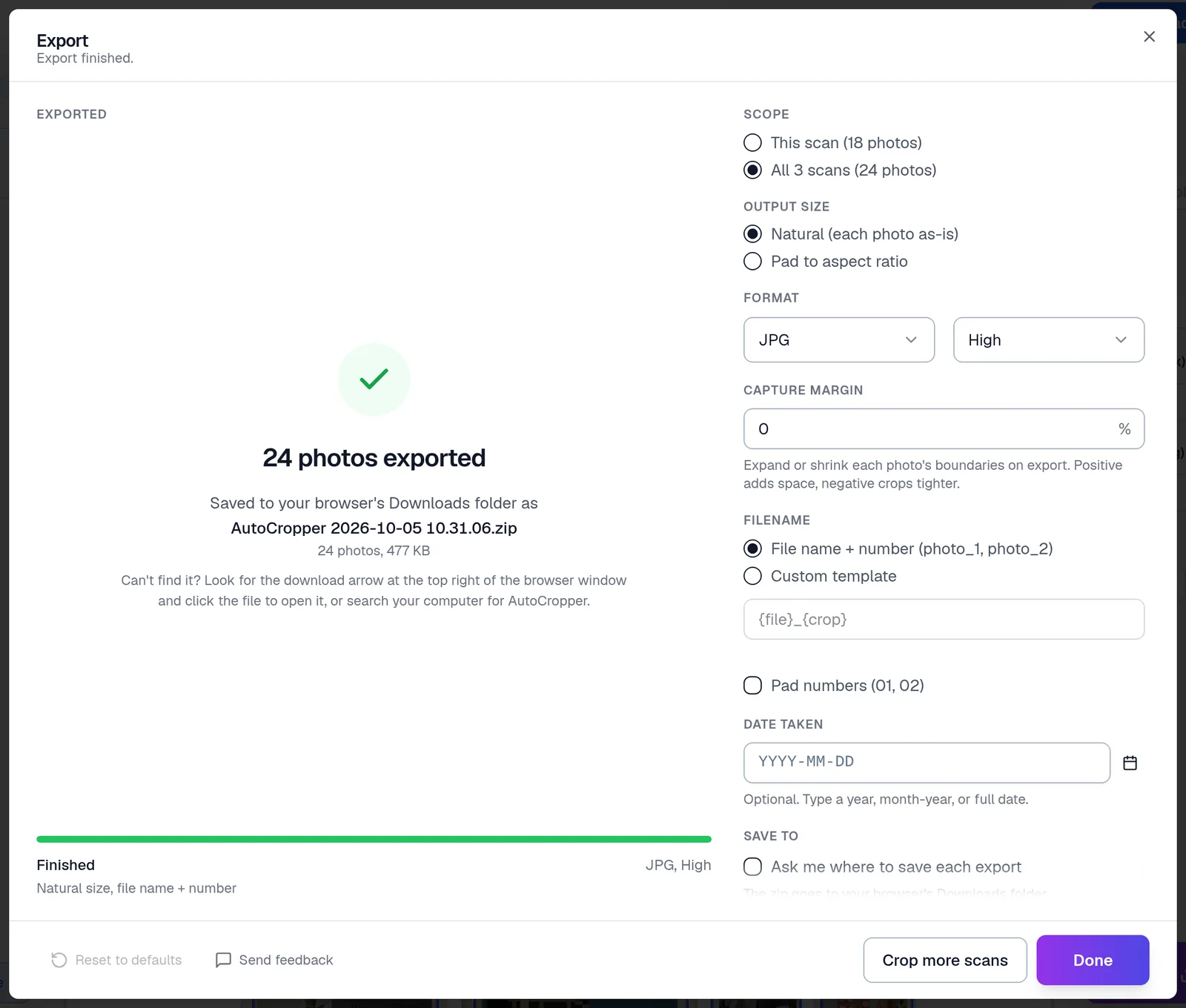
When the export finishes, the dialog shows a receipt: how many photos were exported, the zip's name, where it was saved, its size, and a hint in your browser's own words on where to find it. The zip is named AutoCropper followed by the date and time, such as AutoCropper 2026-10-05 10.26.18.zip, or with the scan's name in it when the export covers one scan, so a lost download is easy to search for.
An export of a single photo is not zipped: the photo downloads on its own, under the same name it would have had inside the zip, such as scan2_1.jpg, and the receipt names it. Two or more photos always come as one zip, because browsers ask before a site downloads several files at once.
- Save to: Ask me where to save each export opens your browser's save window when you click Export, so you can choose the folder. Without it, the zip, or the single photo, goes to your Downloads folder.
- Done closes the dialog with the batch still on screen; Crop more scans clears it and starts a new upload.
- Change any setting on the receipt and the dialog goes straight back to configure, so a second export with different settings is one click.
Large exports#
Most exports download as one zip without a save window. A very large export, roughly over 250 MB, is handled differently. In Chrome and Edge on a computer a save window opens and the zip, of any size, is written straight to the folder you pick. In other browsers the export downloads as several zips of about 100 MB each, split between scans and numbered part 1, part 2 and so on; the dialog warns you first, and your browser may ask you to allow multiple downloads. An export that grows larger than expected splits itself the same way rather than running out of memory.
Stopping an export#
While an export runs, the dialog shows the photo being written and a progress bar with the count and the time left, and the settings are locked. Cancel, Escape or a click outside asks Stop this export? Nothing will be saved; Stop export discards everything, and Keep exporting carries on.
When some photos fail#
If some photos cannot be written, the receipt says how many of the total made it, lists the ones that did not with the reason, and makes each one a link back to that crop in the editor. Retry runs those photos again when a second attempt can help. The most common cause is a source file that was moved, renamed or edited on your computer after you uploaded it; uploading it again fixes that.
Your settings next time#
The dialog remembers how you exported. The moment you click Export, the format, quality, output size and ratio, background, capture margin, file name mode, template, Pad numbers and Ask me where to save become your defaults for the next batch, on this browser. Nothing is saved if you only try settings in the preview and close the dialog. Scope and Date taken are never remembered, because they describe one batch; within a session they survive closing and reopening the dialog. Reset to defaults puts everything back. The demo never saves anything.
On a phone#
The Export button sits in the bar at the bottom of the screen. The dialog opens full screen with the options stacked under the preview. There is no save window on phones, so a large export arrives as several zips, and the receipt explains where your browser keeps downloads.
Common workflows#
- Instagram or a 4:5 print. Pad to aspect ratio, 4:5, with a white Fill color. Export once and the settings stay for next time.
- Trading cards. Pad to 5:7 (trading card) and raise Capture margin to 2 percent so the card's edge is never clipped.
- Digital scrapbooking. Format PNG, Pad to aspect ratio, Background Transparent.
- Prints with a matte. Pad to the frame's shape with a matte-coloured fill, format JPG at Max quality.
- A family archive. Keep File name + number with Pad numbers, rename each scan before uploading (grandma_kitchen_1990.jpg gives grandma_kitchen_1990_01.jpg and so on), and set Date taken to the year the photos are from. Give the photos that matter their own names, such as wedding_1962, in the Name field.
Questions#
Can AutoCropper export transparent PNGs?#
Yes. Choose PNG, then Pad to aspect ratio with Background set to Transparent. Natural PNG exports keep any transparency the uploaded image already had.
Why did my transparent image come out with a white background?#
The format was JPG or JPEG, which cannot store transparency. Switch to PNG; the dialog offers a one-click Use PNG when it sees a transparent upload.
What is the difference between JPG and JPEG?#
Only the file extension. The encoding and the quality are the same.
Does the capture margin change my crops on the canvas?#
No. It only changes what is written to the files.
How are the files numbered?#
By each photo's position on its scan in reading order, left to right and top to bottom, unless your custom template uses {n}, the number across the whole batch. Pad numbers adds leading zeros.
Can I export only some of the crops?#
You can export one scan or every scan. To leave a photo out, delete its crop before you export; Undo brings it back.
Do my export settings sync across devices?#
No. They are kept in this browser only.
Is there a limit on how many photos I can export?#
No fixed limit on the number. The free plan limits how many scans you can upload each day, not what you export from them; see pricing.