FAQ
AutoCropper FAQ: Learn how our online auto-crop tool detects and splits multiple photos, cards, and documents from scanned images. File types, privacy, pricing, troubleshooting, and export tips.
General Questions
What is AutoCropper?
Scanning software that comes with scanners often advertises the ability to automatically detect separate images on the scanner bed and export them to individual photos. However, this process is usually inaccurate and time-consuming. Instead of a single scan, the software requires a preview scan to confirm the accuracy of the individual photos, and then an individual scan is made for each photo. This process is no different than manually scanning each image one by one, which can be tedious and time-consuming.
Enter AutoCropper. You can make single scans with your scanner quickly and easily, and then batch upload them to AutoCropper, which will do the automatic exporting to separate files for you. This saves you time and effort, as you no longer have to go through the preview and individual scan process for each image. Plus, AutoCropper is significantly more accurate, so you can trust that your images will be correctly separated and exported.
How do I download AutoCropper?
AutoCropper is not downloaded, it runs in your web browser which makes it usable by anyone with a relatively capable computer, and internet browser that supports Javascript. All modern software is heading in this direction because it allows developers to push updates quickly and securely.
How do I use AutoCropper?
To use AutoCropper, go to the upload page in your browser. We recommend you use the latest version of Google Chrome for optimal performance. You should see the following interface:
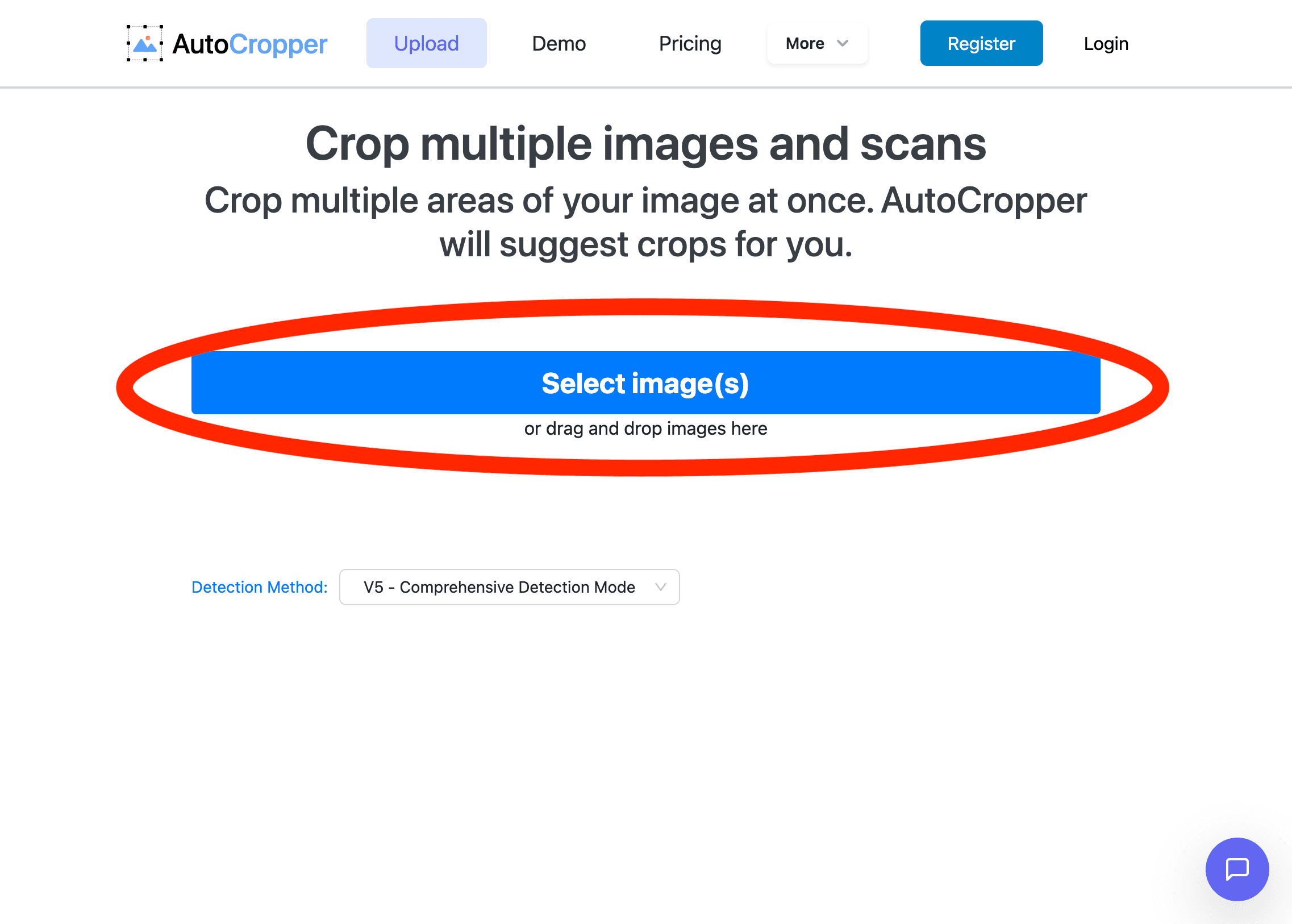
Note that AutoCropper requires Javascript to work. If you are having problems using AutoCropper, I recommend making sure Javascript is enabled in your browser, and that you are using a modern browser such as Chrome, Safari, or Edge.
Learn more about how to use AutoCropper.
Do you store my scans? What gets sent to your servers?
AutoCropper does not upload or store your full-resolution scans. Your original scan stays in your browser so exports can be created at full quality. To detect the crop boxes, AutoCropper sends a heavily downscaled, black and white, metadata stripped version of the scan to the server, and the server returns only the crop coordinates.
If you'd like to read more about this, we have written extensively on privacy and explain how and why user uploads are not stored in any way, shape or form.
How are the individual photos detected?
AutoCropper uses a custom computer vision algorithm written in Python to detect the locations of individual photos on each scan. The scanner whitespace is consistent enough to make this relatively simple, which makes it all the more embarrassing how bad traditional scanner software is.
Learn more about how AutoCropper detects the individual photos on your scan on the Technical Overview page.
Why are my photos not being detected?
Individual photos not being detected can be frustrating. Make sure that you are leaving enough whitespace between photos on the scanner bed. In some cases, for example with black and white photos or photos from a scrap book with additional edges, AutoCropper can have trouble finding the outline of the image. I am constantly updating the algorithm. If you'd like to share your scan that isn't being processed correctly, contact me here.
Also, I've written helpful tips for scanning your photos in the best way to make them work optimally with AutoCropper.
What are the blue rectangles (crop areas)?
The blue rectangles are individual crops. Each one marks an individual area AutoCropper will export as its own image file when you export your crops. After your scan is processed, AutoCropper draws a crop around each detected photo or card so you can quickly review the detection accuracy. You can adjust crops before exporting if anything needs updating.
Read more about how to edit and adjust individual crops in our documentation section.
How do I upload my scans?
To upload your scans, go to Autocropper.io/crop-scans and click the button that says Upload Scans:
You can select a single scan, or select several files at once to batch upload your scans. The free plan accepts up to 3 files per upload; paid plans have no batch limit.
How do I automatically crop the individual pictures on my scan?
To automatically crop the individual pictures on your scan, upload your scan to AutoCropper.
The scan will be processed and within a few seconds, the individual photos on your scan will be outlined in blue rectangles. You can adjust these crop areas, create new ones by clicking and dragging, and delete inaccurate ones.
To download the cropped photos, click the Export button. Learn more about how to export and download my crops.
Pricing and Subscriptions
What are the pricing plans for AutoCropper?
AutoCropper has three plans:
Free: 5 images per day, up to 3 files per upload, and PDFs up to 5 pages, with every feature and full-quality export. No account or credit card needed.
Pro Personal: unlimited images, unlimited batch size and PDF length, licensed for personal and family projects. $16 per month, or $84 per year.
Pro Commercial: everything in Personal plus a commercial-use license for client work, resale, and business use. $24 per month, or $180 per year.
Billing for all subscriptions is through Stripe and you can cancel anytime. See the pricing page for current prices.
Is there a free trial or tier?
There is no time-limited trial. The free plan permits 5 images per day, up to 3 files per upload, and PDFs up to 5 pages, with every feature and full-quality export. No account or credit card is required. Upgrading to Pro removes those limits and detection and export work the same on every plan.
How do I manage my subscription or cancel?
Log in to your account dashboard at AutoCropper.io/auth/account. From there, you can view billing history, update payment info, or cancel anytime. Cancellations take effect at the end of your billing cycle, and you'll retain Pro access until then.
Is AutoCropper completely free?
AutoCropper is free for up to 5 images per day, with every feature included: automatic detection, all detection algorithms, batch export, EXIF preservation, and full-quality output. Pro Personal and Pro Commercial remove the daily, batch, and PDF-page limits. See the pricing page for details.
What's the difference between Pro and Pro Commercial plans?
Both offer unlimited uploads, batch processing, and other custom features. Pro Commercial adds a license for business use (for examples e-commerce, card sellers, digital archival companies).
How do I manage my subscription or cancel?
If you are not happy for any reason, email tucker@autocropper.io within 14 days of any charge, including a renewal you forgot to cancel, and the charge is refunded in full to your original payment method. Refunds go through Stripe and usually show up within 5 to 10 business days. After 14 days a charge is not refundable, but you can cancel anytime from your account page and keep access until the end of the period you paid for.
Features and Usage
What file formats does AutoCropper support?
We handle common scan formats like JPEG, PNG, TIFF, HEIC, HEIF and PDF (for multi-page scans). Note that PDFs are automatically converted to JPG files in order for our detection algorithms to work.
Uploads up to 50MB per file work best. Larger ones might need compression first but it depends on advancements in browser technology. Exports are in JPEG or PNG (configurable via AutoCropper settings) and batched into a ZIP file for faster processing by your machine.
Can I manually adjust or add crops?
Absolutely. After auto-detection, click on any blue rectangle to resize, move, or rotate it. To add a new crop, click anywhere on an image and drag to outline areas the algorithm missed. This is handy for tricky layouts like overlapping photos or scrapbooks. Learn more about creating and adjusting crops on the crop editing documentation page.
Does AutoCropper support rotation or straightening?
Yes AutoCropper automatically detects the rotation of individual images or crop areas and allows you to manually rotate in degrees as needed. However, it's best to avoid rotation whenever possible due to the nature of exporting rotated images, which can introduce pixel smoothing.
Is AutoCropper mobile-friendly?
Yes. Since July 2026 AutoCropper works on phones and tablets as well as desktops. You can upload from your camera roll or files, and iPhone HEIC photos work directly. Crops can be moved, resized, drawn, and rotated by touch, the Advanced Editor works on a phone, and export saves the ZIP to your browser's downloads. A computer with a flatbed scanner is still the fastest way through a large collection, and a phone's memory limits how big a batch it can export at once, so for hundreds of scans use a desktop. For more information on our latest updates, check the release notes page.
Does AutoCropper support PDF or multi-page scans?
Yes, upload PDFs from multi-page scans and we'll detect and crop the individual across pages. For example, uploading a 10 page PDF as a single file has the same workflow as uploading 10 separate scans at once. Each page will be treated as a separate image and visible on the left upload sidebar.
Troubleshooting and Support
What if AutoCropper detects too many or too few crops?
This can happen with low-contrast scans or crowded layouts. Try increasing whitespace between the images on your scanner bed. It's usually better to make more scans with greater separation between images than less scans with more images (for example, two images per scan versus four tightly coupled images) If issues persist, it's worth trying our different detection algorithms. However, when in doubt, re-scanning with greater whitespace between images is often the most effective solution (we've scanned tens of thousands of images and understand your pain).
Why is processing taking longer than expected?
For single scans, it's usually milliseconds, but batches or large files might take longer depending on your internet connection or computer specs. Ensure a stable connection and close other tabs when possible. If it's consistently slow, it could be your device's resources -- we recommend the latest version of Google Chrome.
Does AutoCropper work offline?
No, it requires an internet connection for server-side processing of the compressed scan copy. However, once uploaded, cropping and exports happen locally in your browser. For fully offline alternatives, consider desktop tools like GIMP, but they lack our auto detection functionality.
Comparisons
What are some alternatives to AutoCropper?
If your goal is to split a single scanner-bed image into perfectly cropped, separate files (photos, trading cards, documents), you’ll usually see three types of alternatives: scanner-bundled software, desktop “photo splitter” apps, and pro editors like Photoshop. Most scanner software is convenient but often misses edges, merges items, or requires extra preview/confirmation steps which kills speed when you’re doing real batches.
AutoCropper is purpose-built for the fast workflow people actually want:
scan everything at once
upload a batch
instantly review crops
export each item at 100% full quality.
AutoCropper stays fast and privacy-friendly because it only sends a small, downscaled analysis copy to detect the crop boxes -- then it exports from your original full-resolution scan in your browser, so your downloaded files keep their original quality. If you need advanced restoration (dust removal, color correction, advanced color correction) you can still use a desktop editor after AutoCropper does the heavy lifting of the “split everything into files” step.
How does AutoCropper compare to Photoshop for cropping multiple scans?
Photoshop is unbeatable for advanced photo editing (retouching, color restoration, dust removal), but it’s not optimized for the repetitive job of splitting scanner-bed scans into dozens of separate files. AutoCropper is built specifically for that: upload a batch of scans, instantly see every detected photo/card as a crop, then export each one at 100% full quality from your original scan.
It’s the fastest way to turn “a folder of big scans” into “a folder of individual images,” without a heavyweight install or a complicated workflow. A common professional workflow is: AutoCropper to split/export → Photoshop/Lightroom to do any optional touch-ups.
We've actually done time trials comparing various scan splitting solutions and AutoCropper is truly orders of magnitude faster than any alternative (and for good reason).
AutoCropper vs AutoSplitter: Which is better for batch photo cropping?
If you want a desktop-only workflow, tools like AutoSplitter-style apps can be a good choice. If you want the fastest, lowest-friction batch workflow, AutoCropper usually wins because it’s purpose-built for: scan a bunch at once, then batch upload, review the crop areas, and export individual images in full quality.
AutoCropper also has a big trust advantage for many users: your full-resolution scans stay in your browser, and only a small analysis copy is used to detect crop boundaries. You get speed and privacy without sacrificing export quality. The best way to decide is simple: run the same 2–3 representative scans through both tools (especially a “hard” scan like scrapbook pages or dark borders) and compare results and time.
Can I use AutoCropper with Epson scanners like the V600?
Yes, AutoCropper works great with Epson flatbeds (including models like the V600) because it’s scanner-agnostic: if you can export a scan image file, AutoCropper can split it.
The key is scanning setup: leave visible whitespace between photos/cards, keep items flat, and avoid strong shadows along edges. For most projects, 300–600 DPI is the sweet spot (higher DPI = more detail but larger files).
What scanners or software integrate with AutoCropper?
AutoCropper works with any scanner and any scanning software that outputs standard image files. This is because you upload the final scanned image output from the scanner, and AutoCropper does the splitting/export step. That includes common scanner apps like Epson Scan/ScanSmart, Canon IJ Scan Utility, HP scanning tools, and third-party software like VueScan. The integration most people care about is really workflow: scan into a folder, upload scans in batches, then export individual files with clean crops